How to Translate eLearning Courses: A Guide to Multilingual Training
At a glance
- Single-asset multilingual: All translations live inside one course. One SCORM package, one LMS record, every language.
- 15 languages: Chinese (Simplified), Danish, Dutch, English, French, French (Canada), German, Hindi, Italian, Japanese, Portuguese (Brazil), Portuguese (European), Spanish, Swedish, Welsh.
- Two workflows (Standard and Pro): AI-powered machine translation or JSON export/import for professional translators. On Free, you author in any one of the 15 languages—translation is a paid feature.
- Full coverage: Text, knowledge checks, assessments, cards, accordions, tabs, titles, and all player UI elements.
- Auto-detected: Learner's language is set from browser settings with a manual override available.
Translating eLearning courses usually means duplicating each course for every language you need. You end up managing separate files, separate LMS records, and separate update cycles. When the source content changes, you retranslate and re-export every version. For organizations training teams across multiple regions, this creates version drift, file sprawl, and a lot of wasted time.
Slate takes a different approach. Translations live inside the course itself.
One course, every language
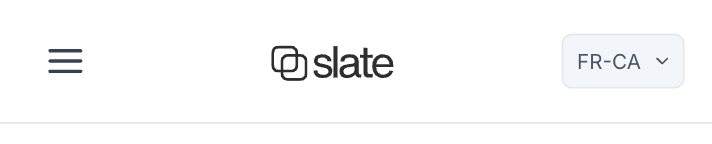
Slate courses are multilingual. A single course asset contains every translated language. There are no copies to manage, no parallel files to keep in sync.
When a learner opens the course, their language is auto-detected from their browser settings. If they want a different language, they select it from a dropdown. The entire course, including all player interface elements like navigation, buttons, assessment labels, and error messages, renders in their chosen language.
When you export the course (SCORM, xAPI, cmi5, or HTML), all translations are bundled into a single package. You upload one file to your LMS. One course record, one completion tracker, every language.
When you update the source content, you retranslate only the sections that changed. No hunting through duplicate course files.
Supported languages
Slate currently supports 15 languages:
- Chinese (Simplified)
- Danish
- Dutch
- English
- French
- French (Canada)
- German
- Hindi
- Italian
- Japanese
- Portuguese (Brazil)
- Portuguese (European)
- Spanish
- Swedish
- Welsh
More languages are in active development. If you need a language that isn't listed, let us know.
How to translate a course
Once a language has been translated, any course author can edit the translated content directly in the lesson editor. Use the language selector dropdown to switch to a translated language, then edit text in place just like you would in the source language.
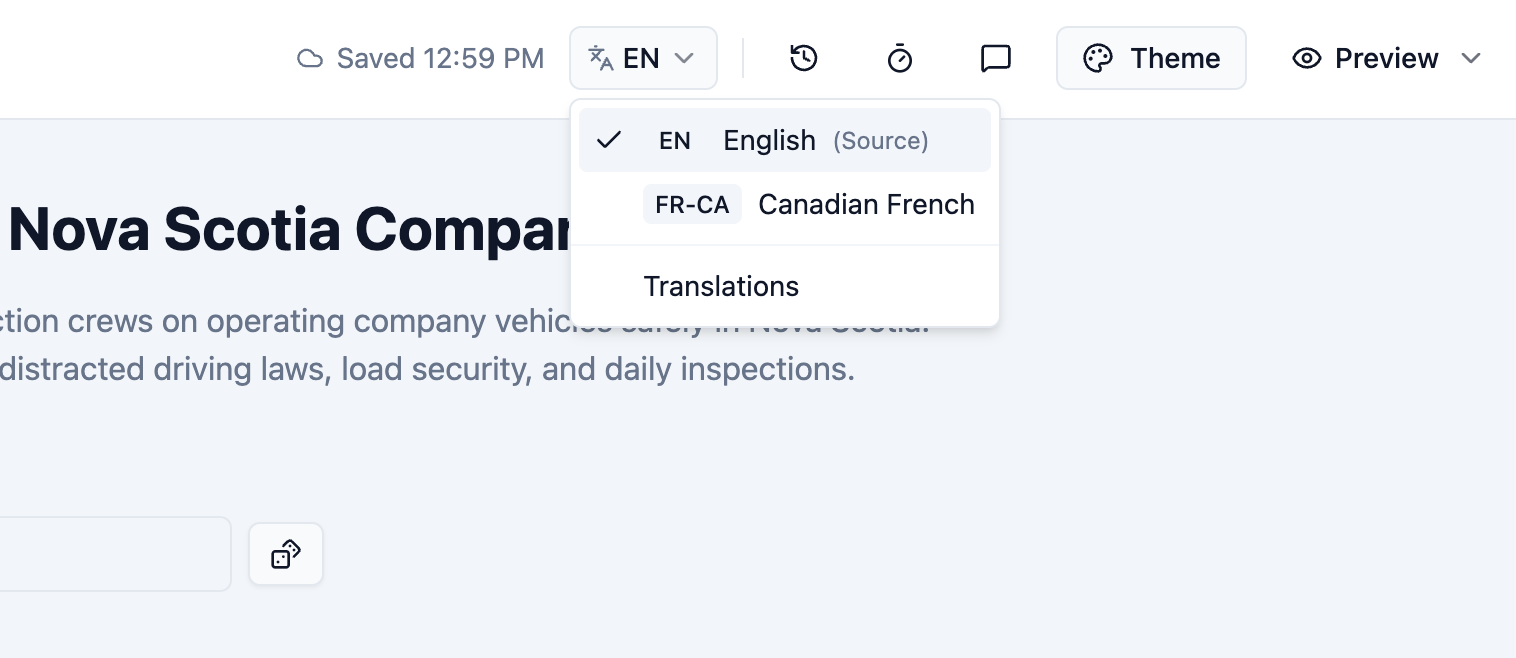
Beyond manual editing, Slate supports two translation workflows, both available on the Standard and Pro plans: machine translation for fast results, and a professional translation workflow for teams that need human-reviewed output. On the Free plan you author your course in a single language of your choice—translation into other languages is a paid feature (see below).
Machine translation
Available on the Standard and Pro plans. Machine translation uses AI to translate your course content in minutes, powered by Google Gemini Pro.
- Open your course in the Slate editor
- Go to the Translations page
- Select your target language from the dropdown
- Click Translate to start the AI translation
- Review the translated content and edit anything that needs refinement
- Preview the course in the target language to check the learner experience
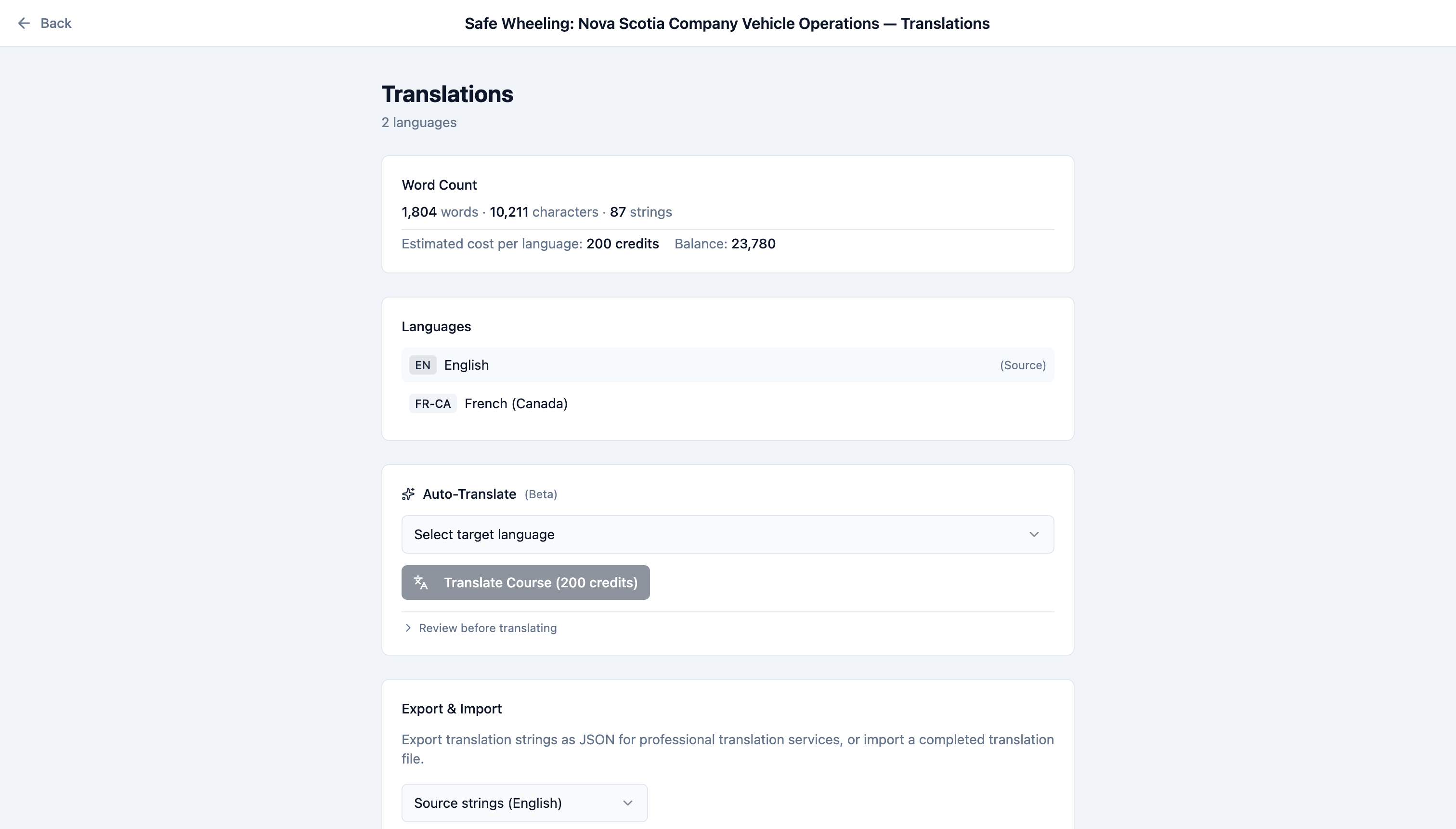
Repeat for each language you need. Each translation is stored inside the same course, so you're building a single multilingual asset as you go.
Professional translation workflow
Available on Standard and Pro plans. For organizations that work with localization vendors or need human-reviewed translations for regulated content:
- From the Translations page, export your course's translation strings as a JSON file
- Send the JSON file to your translation team or localization vendor
- Translators work on the strings using their preferred tools and workflows
- Import the completed translations back into Slate
- Review the translations in context and preview the course
This workflow fits into existing enterprise localization pipelines and gives you full control over translation quality. You can also combine both approaches: use machine translation as a first draft, export for professional review, then import the polished version back.
The professional translation workflow does not consume AI credits since the translation work happens outside of Slate.
Authoring on the Free plan
Translation is a paid feature. On the Free plan you choose any one of the 15 supported languages as your course's source language and author natively in it—writing, generating, and editing your whole course in that language. Free courses are single-language; turning one course into a multilingual asset, with AI machine translation or the professional workflow, is available on Standard and Pro.
What gets translated
The translation system covers all learner-facing text content in your course:
- Text blocks: Paragraphs, headings, lists, and inline formatting
- Knowledge checks: Questions, answer options, and feedback text
- Assessments: Questions, answers, and scoring labels
- Card blocks: Titles, descriptions, and flip card content (front and back)
- Accordions and tabs: Labels and content within each panel
- Titles: Course title, section titles, and lesson titles
- Player UI: Navigation labels, buttons, progress indicators, error messages, and all interface text
Some content types are intentionally excluded from translation:
- Code blocks: Programming code is language-independent and translating it would break functionality
- Document blocks: Attached files like PDFs or Word documents are separate assets with their own localization workflows
- Video and audio: Media assets have their own captioning and dubbing processes outside of course authoring. Subtitle files (SRT/VTT) should be translated separately and uploaded per language.
- Embedded content: iframes and external embeds are managed at their source
Best practices for eLearning translation
Write for translation from the start
Source content that's clear and consistent translates better. Keep sentences short and direct. Avoid idioms, slang, and culture-specific references that don't carry across languages. Use the same term for the same concept throughout your course rather than varying for style. And keep text out of images: text in graphics can't be translated automatically and requires image editing for each language.
Review specialized terminology
Machine translation handles general business and instructional content well. For industry-specific terminology, compliance language, or regulated content, have a subject matter expert review the output. Course authors on Standard and Pro plans can export translation strings for professional review, making this straightforward to build into your process.
Plan for text expansion
Translations from English to German or French commonly produce 15-30% more text. Slate's responsive course layouts handle this well, but it's worth previewing your translated courses to check that nothing looks cramped, especially in knowledge checks and card blocks where space is more constrained.
Test the learner experience
Preview the course in each target language before publishing. Check that knowledge check questions and answer options still make sense in context. Verify that button labels and navigation elements read naturally. The preview is the same experience your learners will have, so use it as your final quality check.
Exporting multilingual courses
When you export a translated course from Slate, every language is included in a single package. This applies to all export formats: SCORM 1.2, SCORM 2004, xAPI, cmi5, and standalone HTML.
For LMS administrators, this simplifies deployment significantly. Instead of uploading and managing separate course packages per language, you upload one file. The course handles language selection at runtime based on the learner's browser settings, with a manual override available. Your LMS tracks one course record with one completion status per learner, regardless of which language they used.
For organizations managing global training programs, this eliminates the operational overhead of maintaining parallel course libraries across languages.
AI credits and translation
Machine translation uses AI credits, included with the paid plans: Standard gets 10,000/month and Pro gets 30,000/month. (The Free plan includes 1,500 credits/month for AI authoring, but translation itself is a paid feature.) Credit usage scales with the amount of content being translated.
If you need more credits without upgrading, you can purchase credit packs within Slate. These are one-time purchases that don't expire.
The professional translation workflow is flexible. You can do all translation work externally via JSON export and import, which doesn't consume any AI credits. Or you can machine translate first, then export the strings for professional review and correction. Most teams find the second approach faster: let AI handle the first pass, then have native speakers refine the output.
Try it yourself
Translation lives on the Translations page in the Slate editor, on the Standard and Pro plans. Sign in to Slate to translate an existing course, or sign up free to start authoring in any one of the 15 supported languages.
For organizations deploying training across multiple regions, Slate's single-asset multilingual architecture eliminates the version management overhead of traditional translation workflows. One course, every language, one export.